
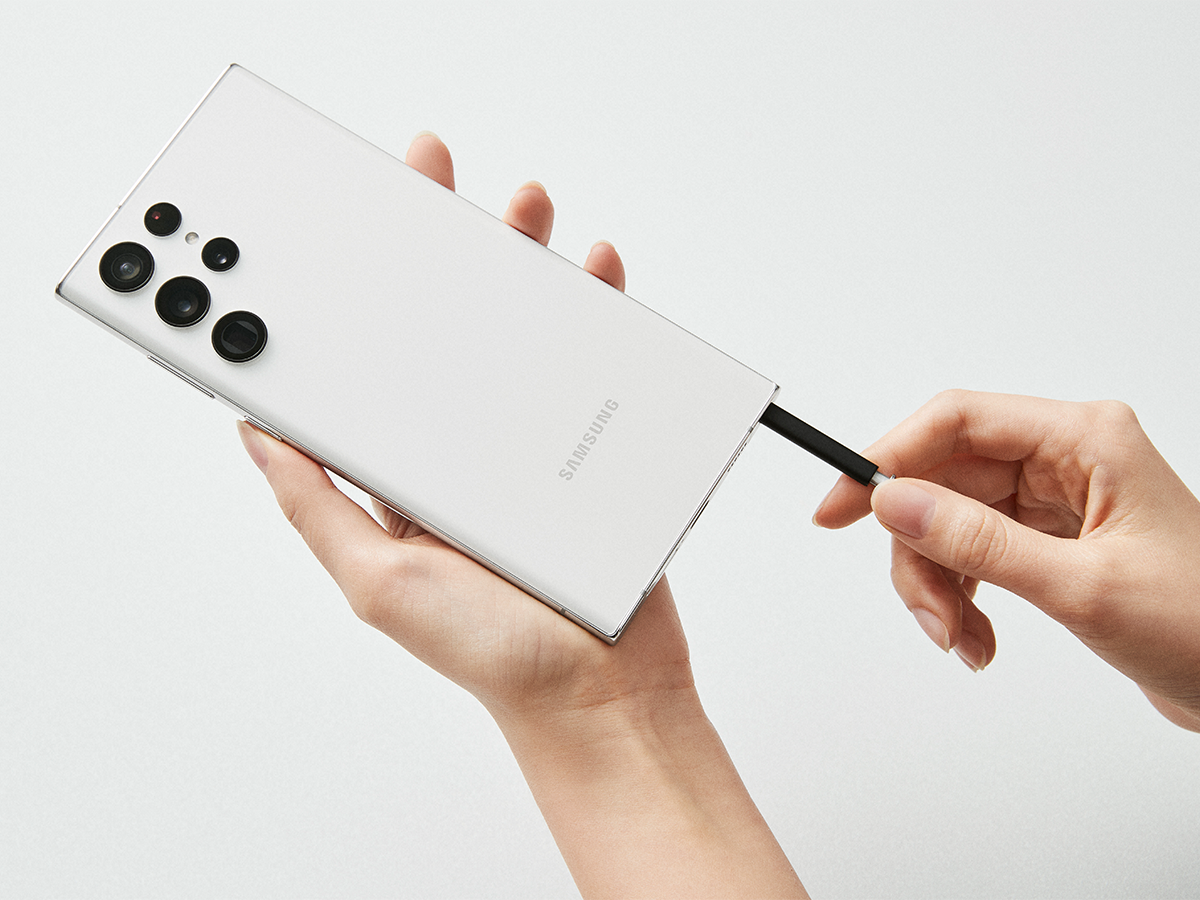
We have been using the Samsung Galaxy S22 Ultra for the past month and have been amazed at the performance of the phone. It started out as looks for us — a sleek new design with built-in camera modules and a slim S-Pen — however, it extended far beyond all-day battery life and next-generation chipsets.
We discover that the more we use the phone, the more we appreciate handy tools that take the user experience to the next level. The kind of stuff we wish every smartphone had! Whether that means using the S-Pen as a camera’s remote shutter button or editing RAW photos in post-production, we explain below our favorite Samsung Galaxy S22 Ultra tips and tricks. Let’s check it out!
Related: Want to know more about the performance of the S22 Ultra? Check out the specifications here.
S-Pen
Handwriting to text
It really goes without saying, but the S-Pen is the greatest gadget added to the Samsung Galaxy S22 Ultra this year. While it may have marked the end of our beloved Note (at least as we know it), the fact that it was executed so cleanly in the Galaxy S22 Ultra gives even more reason to pull out the stylus and use it every chance we get.
Outside of obvious use cases such as signing digital documents, handwriting is converted into text as the S-Pen lights up. Inside the S-Pen settings, you can switch to “S-Pen-to-text” which allows you to type directly into browsers like Chrome without having to type anything. On top of that, if space in the search bar becomes too tight, the sidebar menu can be expanded to include a dedicated handwriting function for jotting things down on the go.
If you’re drawing shapes with the S-Pen but can’t get that perfect shape, hold down the stylus once you’re done and the phone will automatically draw the perfect shape. Handwriting with the S-Pen couldn’t be easier, but the features extend far beyond handwriting and note-taking. We haven’t even talked about gesture controls yet!
gesture control
Gesture controls are easily our favorite feature of the S-Pen. Since Samsung integrated the stylus into the device itself, they’ve expanded the capabilities, encouraging users to pry it out every chance they get. You might think And what is good for other than writing? Well, check out some of the best S-Pen gestures below.
- You can tap and hold the button to open the camera and use the S-Pen as a remote shutter.
- If you wave the pen clockwise or counterclockwise, the camera will zoom in and out.
- Double-click the button and it will open the selfie camera.
- You can gesture the S-Pen left and right to switch between photos in your gallery, and change songs on Spotify.
- Swipe up or down to adjust the volume.
While handwriting with the S-Pen might be your first idea, there are plenty of other ways to take advantage of this toolkit when it comes to using cameras. Speaking of which, there are plenty of tips and tricks built into the camera software as well, so let’s check them out.
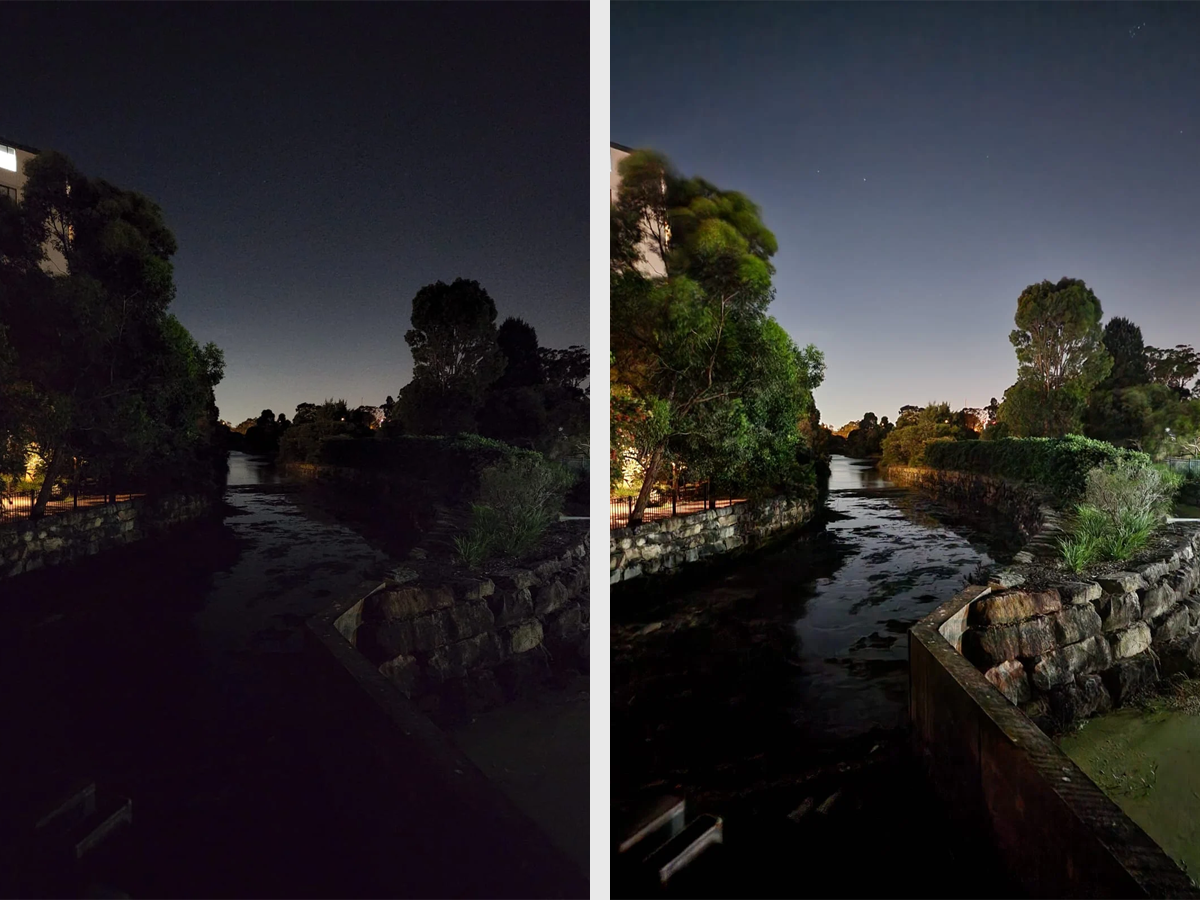
Photo: Samsung / Using night photography
camera
the night
Night photography is a new capability of the Samsung Galaxy S22 range that takes advantage of top-notch camera hardware. If you are looking to get the best possible images from a smartphone, look no further than the 108MP (1 inch) main sensor on the Galaxy S22 Ultra (1 inch) that allows the phone to absorb more light than most smartphones on the market. This translates to exceptional low-light photography and Samsung makes things easier for the user with its ‘Night Shooting’ capability that can be accessed through the Camera app.
Here, you can take pictures and let the large sensor and software do the rest. Hold the phone up and the camera will indicate a countdown timer as it opens the shutter and lets in the light before the photo is taken. As you can see from the results above, the image is much brighter, but remains sharp with very little noise. It is a very useful feature that comes on its own when traveling in low-light conditions at night.
Auto framing
With so many video conferencing going on, it’s good to know that your camera will automatically frame your video when conferencing with friends and co-workers. Moreover, it will encounter individuals whenever someone enters the frame, opening it as it perceives the need for more space. The feature is smart enough to track up to 10 people simultaneously. Finally, if you tap on someone’s face, they will focus and zoom in, perfect for rendering.
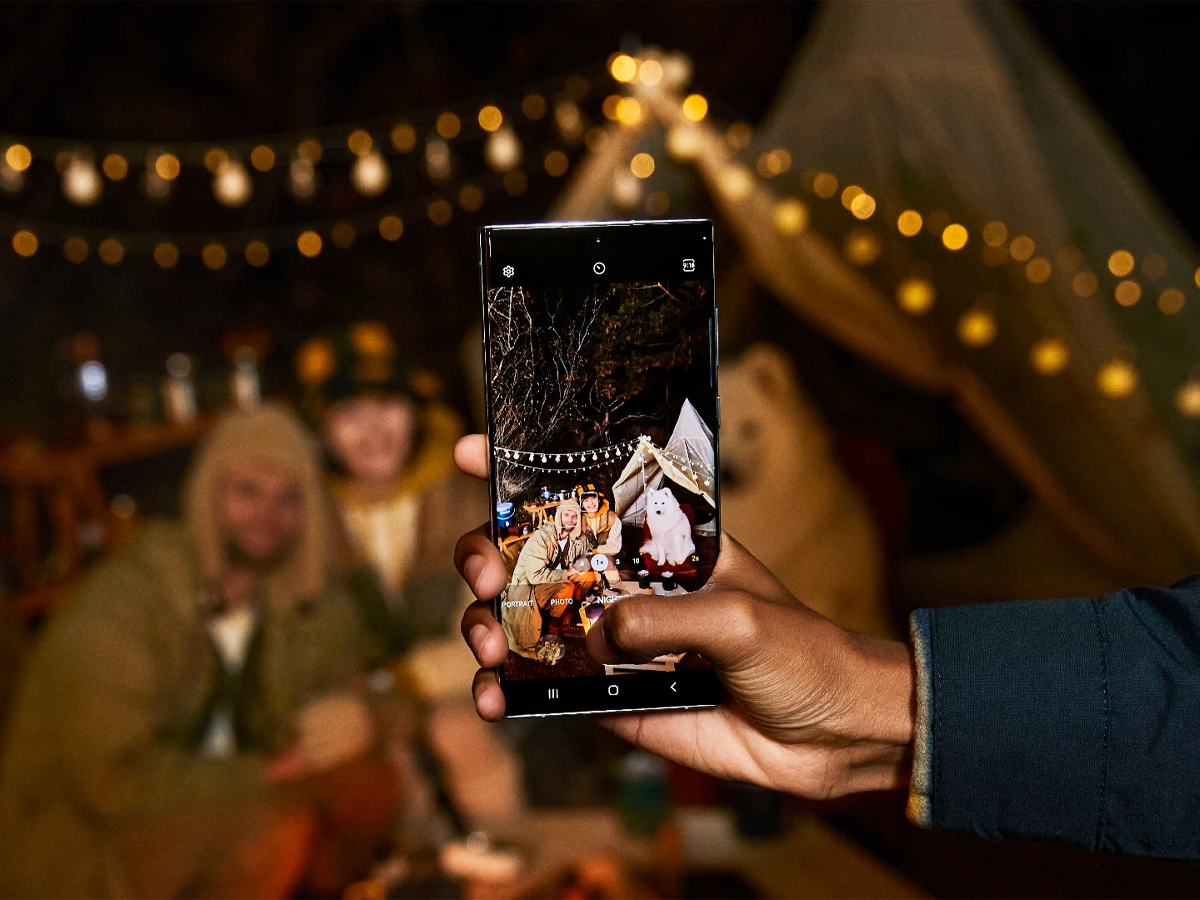
Photo: Samsung
Detail Enhancer
Inside the photo mode, you will see an icon in the lower right corner of the screen. If you click on that, it enables the detail enhancer which sharpens the image while maintaining the resolution. You’ll really notice the difference in things with strong textures like plants, small sculptures, and paintings.
Once you’ve taken that detailed shot, you can go a step further by highlighting the S-Pen and jumping into the Samsung Photo Editor where filters can be applied to photos and settings can be adjusted, including light balance, brightness, exposure, contrast, highlights, shadows, saturation, Dye, temperature. Most importantly, it remains easy to use because you don’t have to be an expert photographer who is good at post-production to understand what looks good! But if you… Samsung has this covered as well.
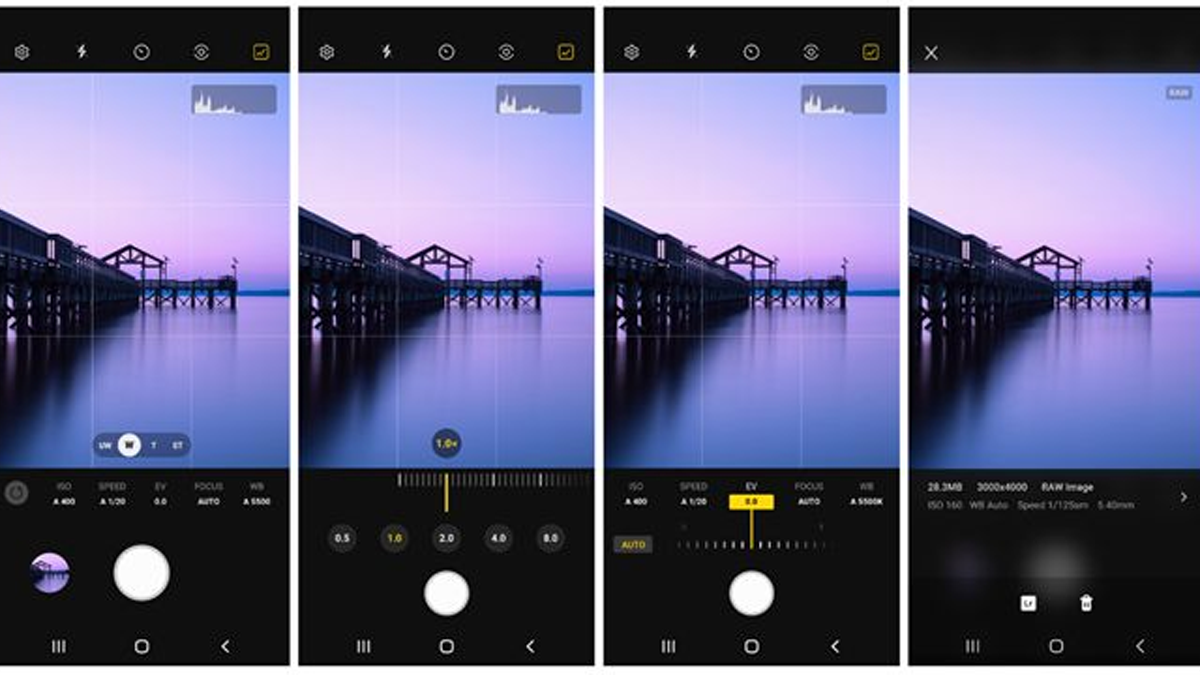
Photo: Samsung Community
Raw . photos
The Samsung Galaxy S22 Ultra can capture RAW quality photos, allowing you to capture more detail and greater dynamic range from the camera sensor. This results in more overhead for editing purposes, which is great for professionals and those looking to experiment and learn professional camera and post-production skills.
For RAW shooting on the Galaxy S22 Ultra; Open the camera app and go to the professional mode, from there, open the settings and go to the image format where you will find the RAW image setting. This will unlock maximum quality from the camera allowing you to edit photos in post-production in finer detail. Within the photo gallery, RAW photos will be marked with a “RAW” indicator in the upper right corner so you know which photos are ready to transfer. We highly recommend Adobe Lightroom here. It is a free app that can be found on the Google Play Store and offers the best photo editing on mobile devices, period.
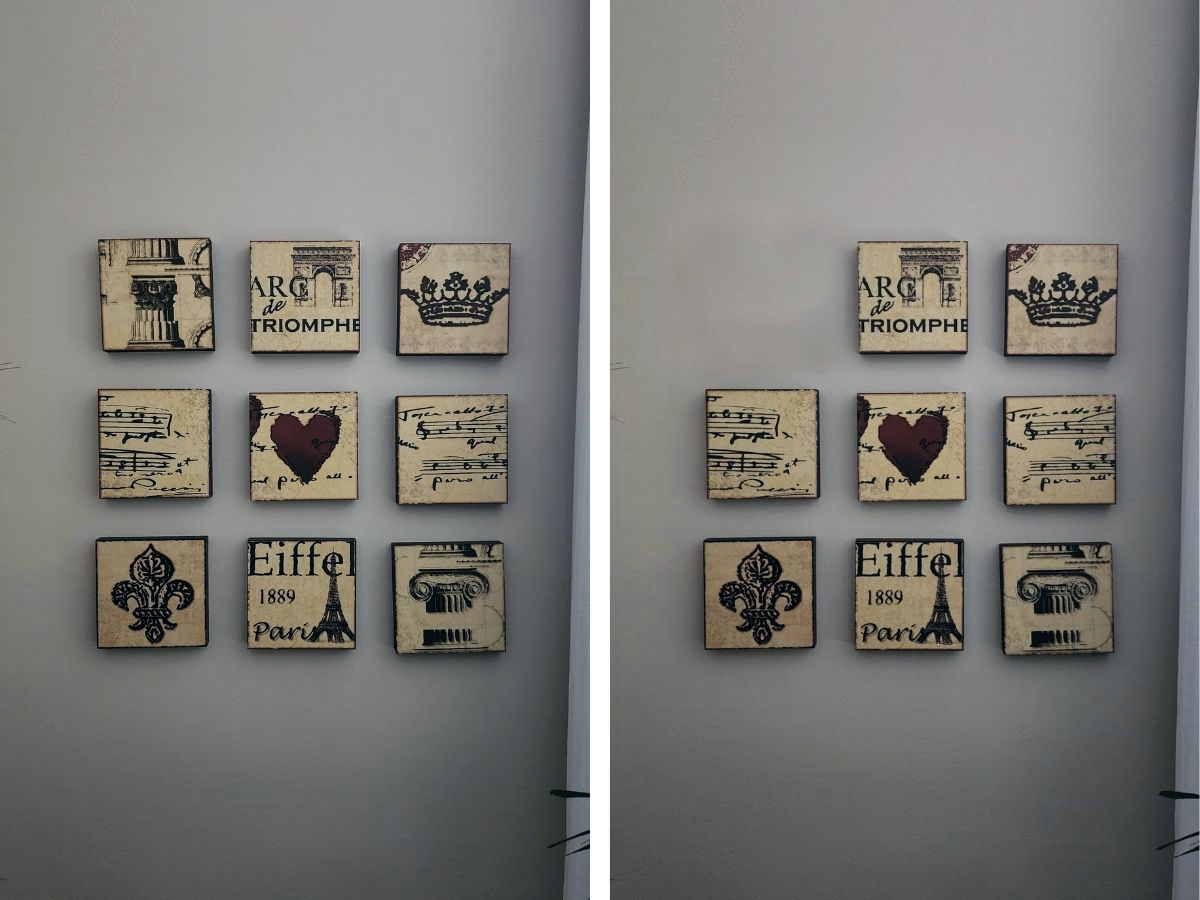
Photo: Many Man / Ben Makim
object eraser
Our most used software or post-production feature should be Object Eraser. From within the camera gallery, open any photo and tap Edit before finding the three dots in the lower right corner and go to the object eraser. Use the S-Pen and draw around the object you want to remove, for example, a person, animal, traffic cone, lamppost, etc. and simply click on “Scan”. This also works with shadows and reflections by selecting the appropriate button and highlighting them with the S-Pen.
It’s one of the easiest tools to use if you’re traveling and tourists keep taking pictures of your background, or maybe there’s some trash on the floor? Whatever it was, the scanning tool will get rid of it cleanly.
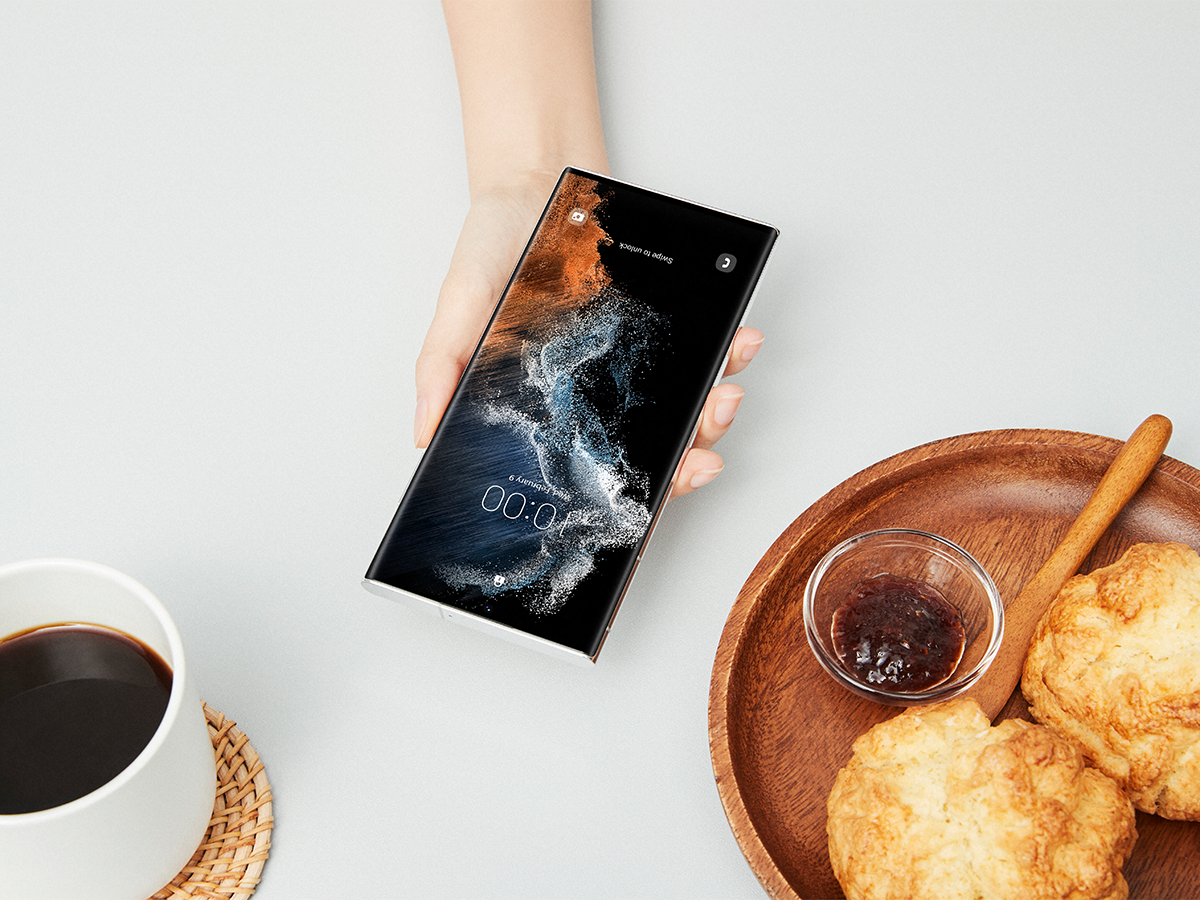
Photo: Samsung
user interface
So we showed you all the features you didn’t know about the Samsung Galaxy S22 Ultra camera and S-Pen, but what about the user interface? Customization is the point of the game here and along with a host of small (but easy to use) features creates a superior experience beyond what you thought a smartphone was capable of. Let’s check it out.
Personalization
First and foremost is customization, and the Samsung Galaxy S22 Ultra is one of the most customizable smartphones on the market. Almost everything can be modified to your liking here, from color themes to personal contact videos (yes, videos), and even emojis. Here are some customization tips we loved.
- Tap on the home screen to change the themes, including the color palette that can be matched with your wallpaper.
- You can set videos as background for calls, even audio can be used as ringtone.
- Emojis can be combined together and animated into a gif, yes.
- Display settings will allow you to switch between additional brightness to reach the maximum capacity of 1,750 nits.
Other great features
- Set a timer and it will be combined as a popup on the home screen even when you are not using the app so you can pause it.
- The camera indicator light will tell you when it is on, however, you can turn off the camera manually for privacy.
- The camera clip can be hidden for manually selected apps through the view menu.
- The Battery Protect setting helps stop the phone from charging more than 85% which increases the battery life.
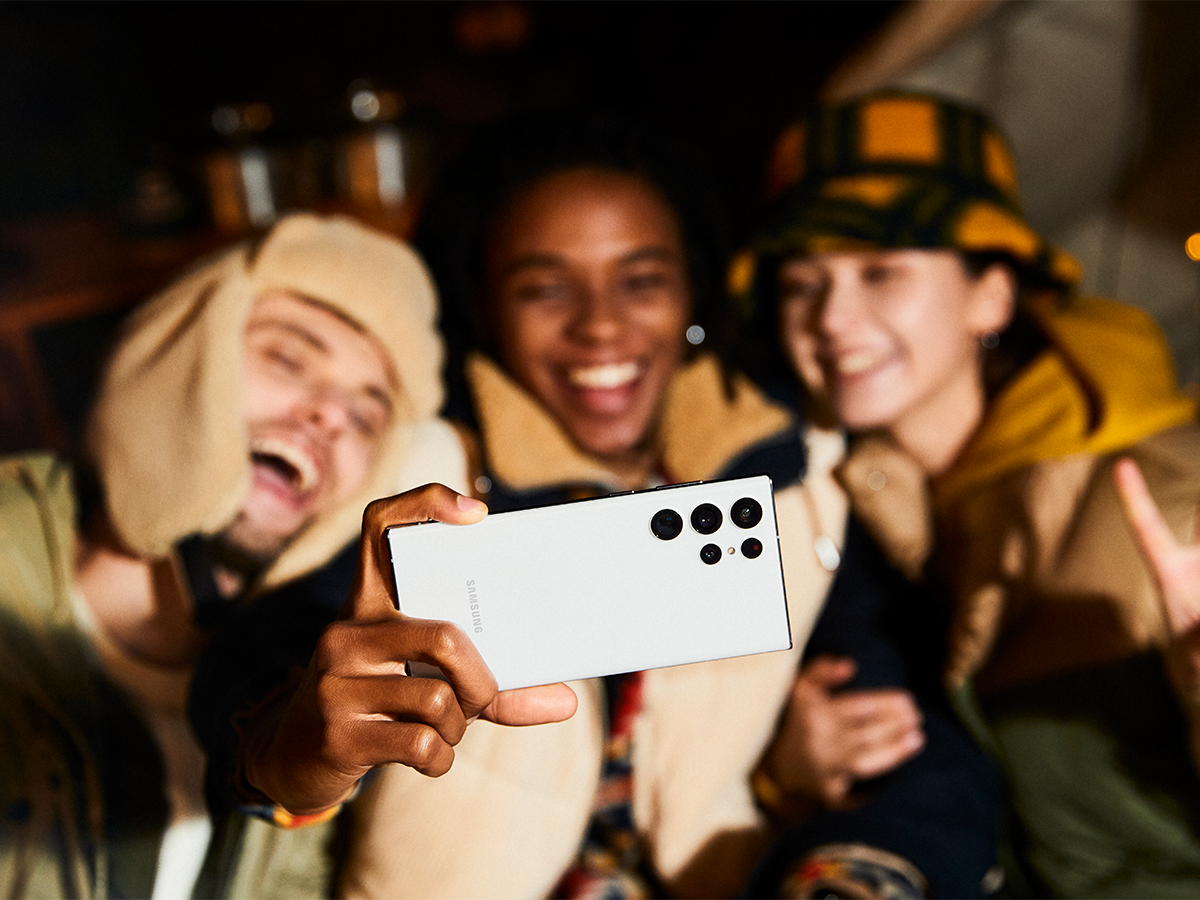
Photo: Samsung
This is exactly the Samsung Galaxy S22 Ultra
We’ve used the Samsung Galaxy S22 Ultra for the past month now and we guarantee that the above tips and tricks will take your smartphone experience to the next level. While the Galaxy S22 Ultra experience might start out with class-leading performance thanks to its powerful chipset, all-day battery life, 6.8-inch QHD+ display, and even IP68 water resistance, it extends beyond the numbers for a well-rounded user experience that will have you wondering “How did he really do that?” every day. Check out the Samsung Galaxy S22 Ultra via the link below, with prices starting at AU$1,849.
About the author

journalist
Ben McKim
Ben lives in Sydney, Australia. He holds a BA (Media, Technology, and Law) from Macquarie University (2020). Away from his studies, he has spent the past decade heavily involved in the world of cars, technology and fashion. He turned his passion and experience into a journalistic position at Man of Many where he continues to write about everything that interests modern man. Conducting both road and track car reviews, hands-on reviews of the latest technology and employing extensive knowledge in fashion and athletic footwear for his work. One day he hoped to own his own brand.